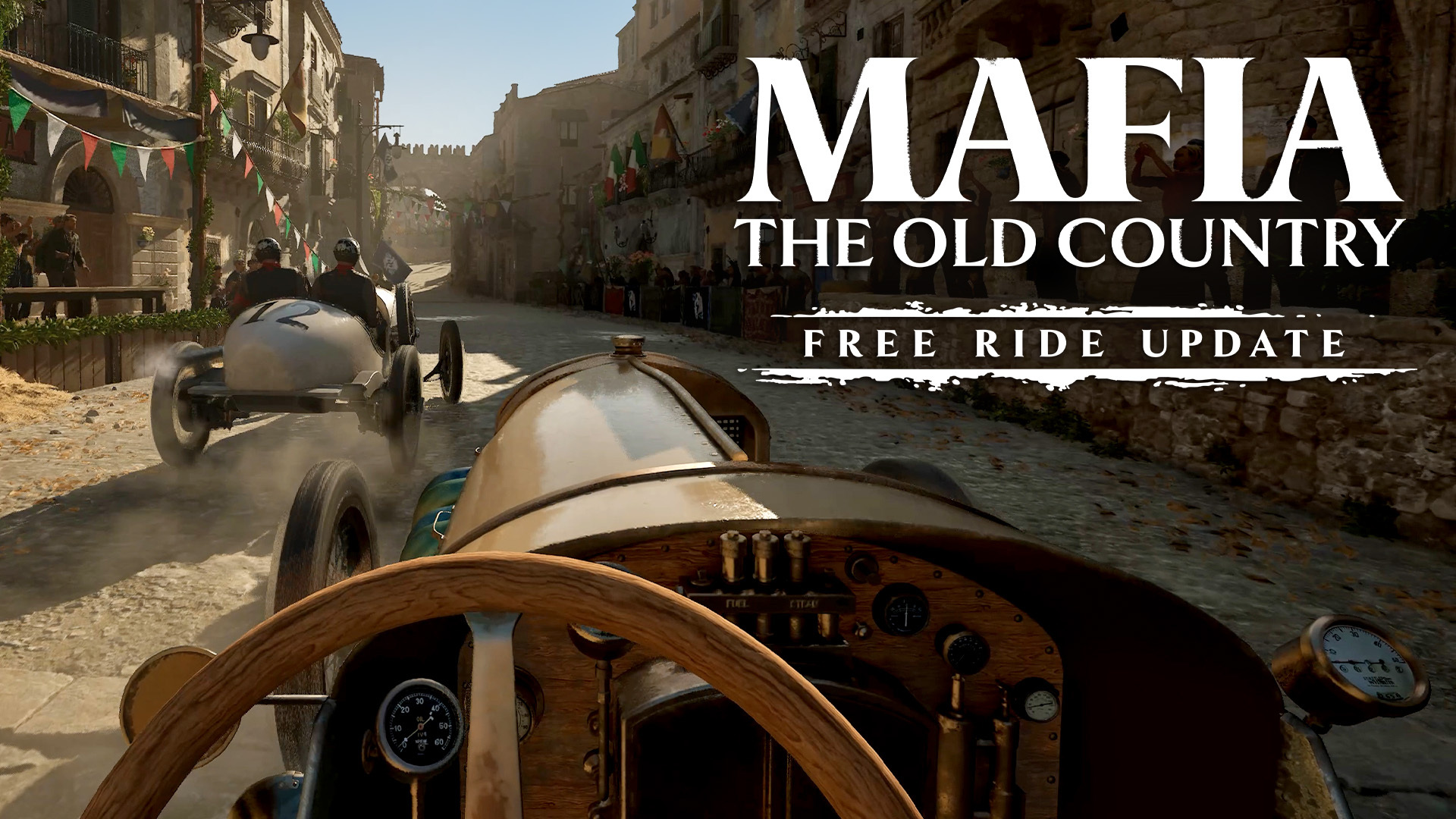
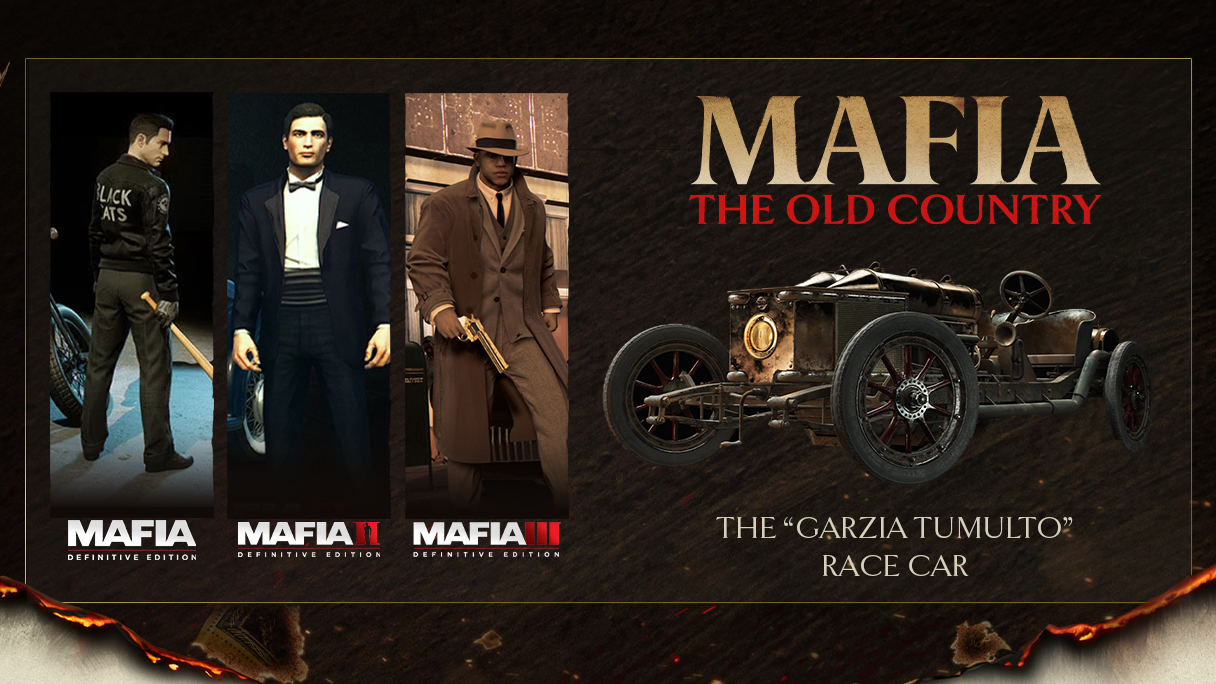
Mafia: The Old Country's stunning Sicilian countryside practically begs to be photographed, and now you can do exactly that. As part of the game's Free Ride Update—a free update for all players including new features, challenges, collectibles, and more—a robust Photo Mode is now available, letting you capture all of the rugged beauty of the Valle Dorata and the intense action of Enzo's journey into its criminal underworld.
Below, you'll find an overview of how to access Photo Mode, how it works, and some additional tips for taking stunning screenshots.
How to Access and Use Photo Mode
At any point during gameplay in Free Ride or the main campaign (excluding cutscenes), you can pause the game, navigate to the Options tab, and activate Photo Mode from there. Each platform also has a dedicated shortcut command enabled by default; you can navigate to "Settings," "Controls," and then "Photo Mode Shortcut" to toggle it off or back on.
On a PlayStation controller, the default shortcut command is to press L1 and the left side of the Touchpad. With an Xbox controller, the shortcut is LB and the View button. If using a mouse and keyboard, the default button for this shortcut is the "P" key.
When activated, Photo Mode will always pause the action so you can compose the perfect shot without missing anything. Additionally, there is no need to be online to access Photo Mode once the Free Ride Update is installed.
While in Photo Mode, you can move the camera using the standard movement controls to find your desired framing. Then, you can tab through a wide range of settings to achieve the visual effect you want:
Field of View:
Adjusting Field of View will increase and decrease how much can be seen within the frame.


Focal Distance and Aperture:
By adjusting Focal Distance and Aperture, you can control the image's depth of field, shifting which sections of the environment are in focus. This means you can give a photo sharp focus throughout, or blur the background or foreground to isolate the subject.


Brightness, Contrast, Saturation, and Camera Tilt:
- Brightness – Changes the overall lightness or darkness of the image.
- Contrast – Modifies the difference between the lightest point and the dark point.
- Saturation – Changes the intensity of the colors within the image.
- Camera Tilt – Changes the rotation of the camera.


Filters (plus Vignette, Film grain, Scratch):
There are seven filters available within Photo Mode that will change the style of the image, as well as several settings with which you can tune a filter's look:
- Filters:
- None, Cinema Siciliano, Cinema Siciliano Sepia, High Contrast, Soft Glow, Analog, Split Tone, 35mm Film
- Filter Intensity
- Vignette – Adds darkness to the outer perimeter of the image.
- Film Grain – Add visual noise to the image.
- Film Scratch – Replicates the effect of old film in the image.


Display
- Show Player Character
- Show Other Characters
- Show Grid
When your composition is ready, you can hide the Photo Mode UI by pressing the Square button on a PlayStation controller, "X" on an Xbox controller, or the "H" key on a keyboard. Next, we'll go over how to save and find your shots.
Saving, Managing, and Sharing Your Photos
On PlayStation 5 or Xbox Series X|S, pressing the Share or Capture button respectively will save the photo using that console's first-party process. On PC via Steam, pressing "F12" or your controller's assigned hotkey command will save the photo to your hard drive.
Be aware that your Photo Mode photos won't be saved in Mafia: The Old Country itself, but via your platform's native image-sharing functionality. On PC, for example, the pictures will be saved to whichever folder your Steam account saves screenshots by default. While viewing Mafia: The Old Country in your Steam library, you can browse the "Recordings and Screenshots" tab on the lower right to see your shots. While viewing a screenshot, you can right-click and select "Show on disk" to easily navigate to the screenshot file itself.
Once you've taken and selected your favorite shots, we encourage you to share them with friends, the wider Mafia community, or anywhere on social media using #MafiaTheOldCountry.
Finding the Perfect Shot
There's no shortage of scenic sights around the valley, and that's in addition to the collectible Photograph locations where Enzo can use his camera to snap a picture. Here's a list of particularly photo-worthy spots around the map, as recommended by the team at Hangar 13.
- The approach to Porto Almaro – A seaside road near the old watchtower provides a nice overlook above the town.
- The lavender field near Villa Torrisi – This view adds a nice splash of color to the countryside.
- The chapel in Tannery Village – Paired with the proper lighting, the path up to the chapel provides opportunities for some nice compositions.
- San Celeste's Alleys – This Sicilian town's narrow streets, bustling hubs, lively inhabitants, and early 1900s architecture offers plenty of beautiful sights to capture.
- The Byzantine Ruins in Fontanella – Near the bridge in the uppermost part of Fontanella, you can try to capture a slice of Sicilian history surrounded by nature.
With that, you're fully prepared to snap some gorgeous shots of the Valle Dorata. For a glimpse at Photo Mode in action, plus the rest of the new features now available alongside it, check out the Free Ride Update trailer below.